
A simple question came from a client recently. They have enabled search and it’s working fine, but there’s one specific field that’s not included in the search.
Things have been going through a bit of reshuffling, and now you are looking at the search configurations within a Solution. So, let’s go to a solution, and on the Overview page you now see at the top right the Dataverse search area.
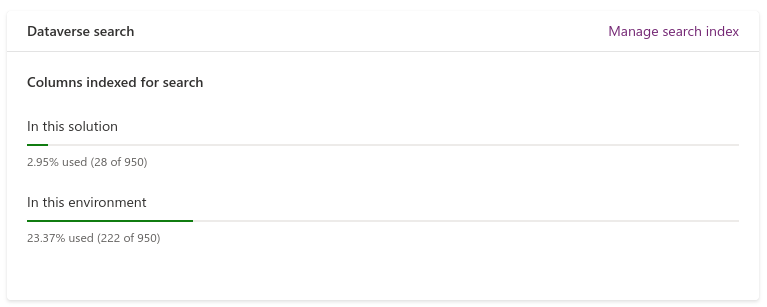
And if you go to the Manage search index, you now get a nice view of the Entities/Tables that are configured for Search. It’s also pretty clear that indexing is not across all fields, as each table shows how many columns are added to the index.

But where do you go to select the columns? It would have been too easy to have a direct link from here.
Instead, we now have to navigate to the respective Entity/Table configuration. Here, let’s go to views and find the Quick Find view for the respective Entity/Table. Once you open this view, the view configuration on the right includes a section titled Find by …
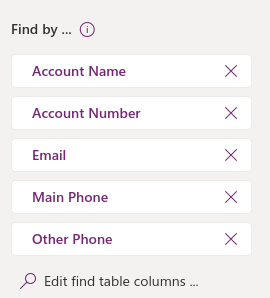
Here you’ll see all the columns available for indexing, and you can add or remove columns by selecting the Edit find table columns … link.
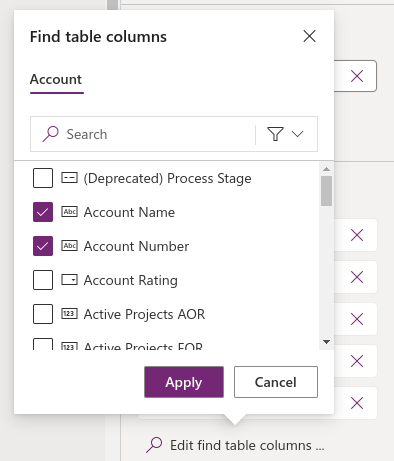
Select or deselect the fields as needed, then hit Apply.
Now you wait a little for indexing to run, and results will start to show up according to the new configuration.
Enjoy your new Search capabilities!

 thatcrm.com
Leave a comment